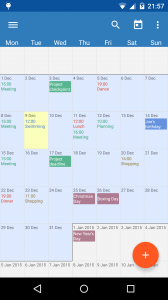
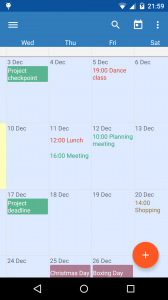
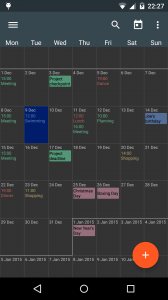
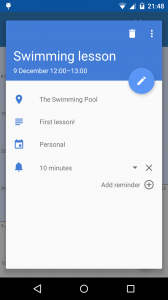
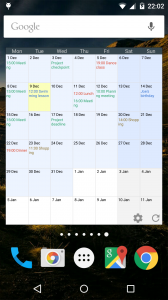
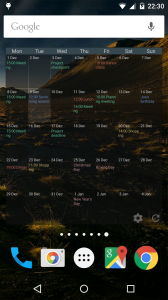
Touch Calendar 0.9.6
- Font size settings – from Large to Very Small
- Auto-adjust font size – shrinks the font when you zoom out
- Fix for bug where zooming out at min-zoom would scroll upwards
- Added a link to the User Group from the instructions page
OK, so the comments thread on here for Touch Calendar was getting a bit hard to manage, so I’ve created a new discussion group for the app.
Use the Touch Calendar for Android User Group to get support, or to send suggestions or for any other discussion of the app.
Thanks!
Froyo changed the Quick Search Box to make it case-sensitive. This meant that keywords had to be typed with the right casing (so e.g. “Cal” would not work for “cal”). This update fixes this so that keywords are never case-sensitive.
I’m pleased to announce my new app, Touch Calendar – now available on the Android Market as a beta test version.
Touch Calendar is a completely new way of browsing your calendar on a mobile phone. Your phone’s screen becomes a window onto your whole calendar, allowing you to zoom in and out and scroll around as much as you want. No more switching between multiple calendar views to see your events – now you can see your upcoming events with one glance.
For a full description of what you can do with app, see the Touch Calendar homepage.
The app’s by no means complete yet but the Market version should be fully usable. If you have any suggestions for new features or encounter any problems using it, please let me know.
Thanks!
OK, so the new Android 2.2 update (which some of you with Nexus Ones might have already) is pretty awesome. It’s much quicker, it allows flash and mobile hotspots, and other goodies. One other thing it affects though, is the quick search box, and that means a few changes in the way Searchify works.
The changes aren’t too big – you can still just type into the search box and some Searchify results may appear below. But now the box usually only shows one or two Searchify results – it prefers to show you Google results.
There’s an easy way to see Searchify results though – the new search box (that comes up when you press the search key) has a g icon next to it that you can tap. If you do, you see icons for all the kinds of searches you’ve enabled. You should see Searchify here – if you don’t, you need to activate Searchify in your phone’s settings.
Tap the Searchify icon to see only Searchify results from your search query.
Widget: With 2.2 you can also now create a Searchify widget. Go to the Add Widget menu and choose a “Google Search” widget. A menu will pop up asking what kind of search widget you’ll like. If you’ve activated Searchify, it’ll be one of the options.
A few other points:
New version 1.1.2 released:
New version just released: