Install Touch Calendar and Searchify from the web
With the launch of the new Android Market website, you can now install apps from the web, including Touch Calendar and Searchify. Use these links: Touch Calendar Touch Calendar Free Searchify
With the launch of the new Android Market website, you can now install apps from the web, including Touch Calendar and Searchify. Use these links: Touch Calendar Touch Calendar Free Searchify
Made keywords case-insensitive in Android 2.2. Froyo changed the Quick Search Box to make it case-sensitive. This meant that keywords had to be typed with the right casing (so e.g. “Cal” would not work for “cal”). This update fixes this so that keywords are never case-sensitive.
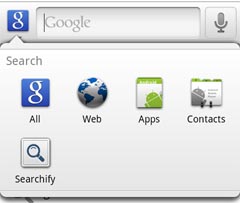
OK, so the new Android 2.2 update (which some of you with Nexus Ones might have already) is pretty awesome. It’s much quicker, it allows flash and mobile hotspots, and other goodies. One other thing it affects though, is the quick search box, and that means a few changes in the way Searchify works. The changes aren’t too big – you can still just type into the search box and some Searchify results may appear below. But now the box usually only shows one or two Searchify results – it prefers to show you Google results. There’s an easy way…
Fix to make Searchify calendar features compatible with Android 2.2 (Froyo)
New version 1.1.2 released: fixes issue where some all-day events in calendar search were being shown with the wrong date
New version just released: adds power and torque units to the unit convertor
You can change the wikipedia language in Searchify Settings. From the settings screen, press Menu then go Options -> Wikipedia. Or tap-and-hold on the Wikipedia entry in the main settings screen. You’ll see “Wikipedia language” setting and will be able to choose the wikipedia language.
Droid Life have done a video review of Searchify, showing the calculator and calendar functions in action and also how to get the app set up. Check it out!
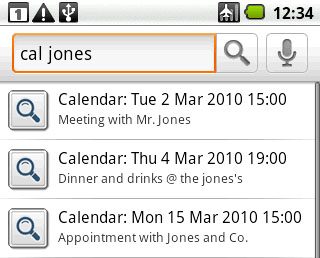
Searchify’s calendar search feature searches your calendar and brings back any events that match. To use it, type the keyword cal followed by the words you want to search for. If you don’t want to type “cal” every time, you can change or remove that keyword in Searchify Settings. Calendar search brings back both past events and future events. In Searchify Settings you can set how far back in the past and future you want it to look – the default for this is one year in the past and two years in the future. You can also choose in…
Adds Calendar Search, with a keyword of “cal” (e.g. type “cal meeting” to search for meetings)