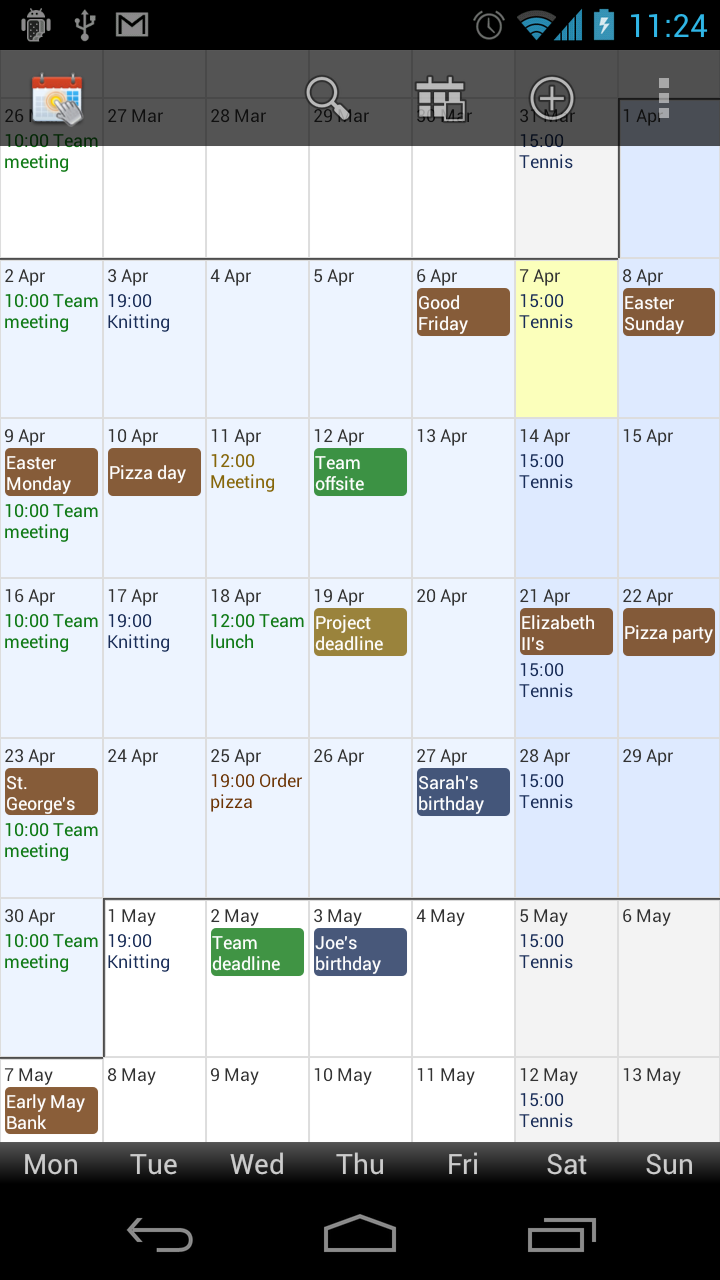
Also had a few problems with this release so sorry to anyone who downloaded and had crashes with 1.1.16 or 1.1.17. Should all be fixed now!
Like the new version of Touch Calendar Free, this update brings support for the Honeycomb and ICS look-and-feel with action bar support. It also has a few widget changes including the much-requested transparency option.
That change list in full:
- a change to how zooming works to make it much smoother
- action bar support and support for the Android look-and-feel in ICS/Android 4.0
- new ‘very large’ and ‘huge’ font sizes
- two new dark themes
- widget transparency added
- option for widget colour scheme separate from the main app
Well, after a couple of hiccups (let’s just forget version 1.0.20, ok?
), here’s a new version of Touch Calendar Free. If you’re using a phone with Android 4.0 this’ll be a big update for you. It features:
- a change to how zooming works to make it much smoother
- action bar support and support for the Android look-and-feel in ICS/Android 4.0
- new ‘very large’ and ‘huge’ font sizes
Just a quick update this one, to fix the issue where the menu button wasn’t appearing on some Honeycomb tablets.
- Fix honeycomb menu button issue.
A new version of both of the Touch Calendar apps. Hopefully they should fix some of the force closes some people have been seeing. These versions also get ready for the new Android phones running Ice Cream Sandwich.
- Fix for some force close issues
- Compatibility for ICS
It looks like the Android Market is not having a good day for some reason. Lots of people are seeing payments not authorised or downloads not working.
If this has happened to you when trying to buy or download Touch Calendar, apologies. It seems to be affecting all paid apps at the moment. It looks like it’s getting a bit better so please try again. Thanks for your patience!
A few nice changes in this new version:
- Visual update: new cleaner look
- Dark theme added (feedback welcome!)
- Much faster startup
- Widget is now bigger
- Zoom buttons are now off by default (but can be turned on in settings)
- Fix for issue where all day event bubbles sometimes didn’t display properly
Touch Calendar Free gets a new version too!
- Visual update: new cleaner look
- New colour scheme: blue and white
- Zoom buttons are now off by default (but can be turned on in settings)
- Fix for issue where all day event bubbles sometimes didn’t display properly
This isn’t a new update, just forgot to post this update until now.
- “Select calendars” option screen added to widget settings – calendars can now be selected separately for each widget
- Added several more reminder time options
- Fix for issue where calendar would start on a random date, goto date/today would not go to the correct date, and widget taps would go to the wrong date sometimes. Also fixed related ‘double-events’ issue. If you still see this happening, please let me know!
If all your events just recently disappeared from Touch Calendar, this is not the app’s fault. Your calendar data is stored in the Android calendar database not by Touch Calendar, so it’s not possible for the app to lose your data. There seems to be a Google Calendar issue at the moment causing the data to disappear from some phones – Google is looking into it, see here for details: http://www.google.com/support/forum/p/Calendar/thread?hl=en&tid=76214c659d3af880
If this happens to you, you may find your events are still present on Google Calendar on the web. Check at http://google.com/calendar.
Touch Calendar makes it easy to add custom repeating events including biweekly events, monthly events, and events that happen every Tuesday and Thursday.
To add a repeating event in Touch Calendar, start adding an event in the usual way (tap-and-hold on a date or use the ‘Add event’ menu item). Then scroll down in the add event screen to see the ‘Repetition’ heading. Under that you’ll see a drop-down box with options as shown here.

The repetition options
Adding a biweekly event

To add a biweekly event, you should select the “Every x weeks” option. Then you’ll see further options appear below the drop-down box, after you how often in weeks you want the event to repeat, and if you want to set an end date for the repetition.
An event every Tuesday and Friday

Alternatively, if you want to have an event repeat every Tuesday and Friday, you should select the “On selected days every week” option. You’ll then see a series of checkboxes appear for you to select which days you want the event to occur on, and again to allow you to set an end date.